

Serial and a terminal
The DB9 socket turns any laptop into a second way in to the ACE. You don't need it — the machine has its own keyboard and its own screen — but there are a few things it makes much easier.
Why you'd bother
- Copy and paste. Paste a program listing straight in instead of typing it.
- Scrollback. Look at what went past.
- Saving to a real file on your computer, so listings can live in a folder or in version control.
- Mixed case. The ACE's own keyboard types capitals only; text arriving over the serial line keeps whatever case it was written in.
- No video card needed. With no video card fitted, the whole console — header, prompt, everything — comes out here instead.
Setting it up
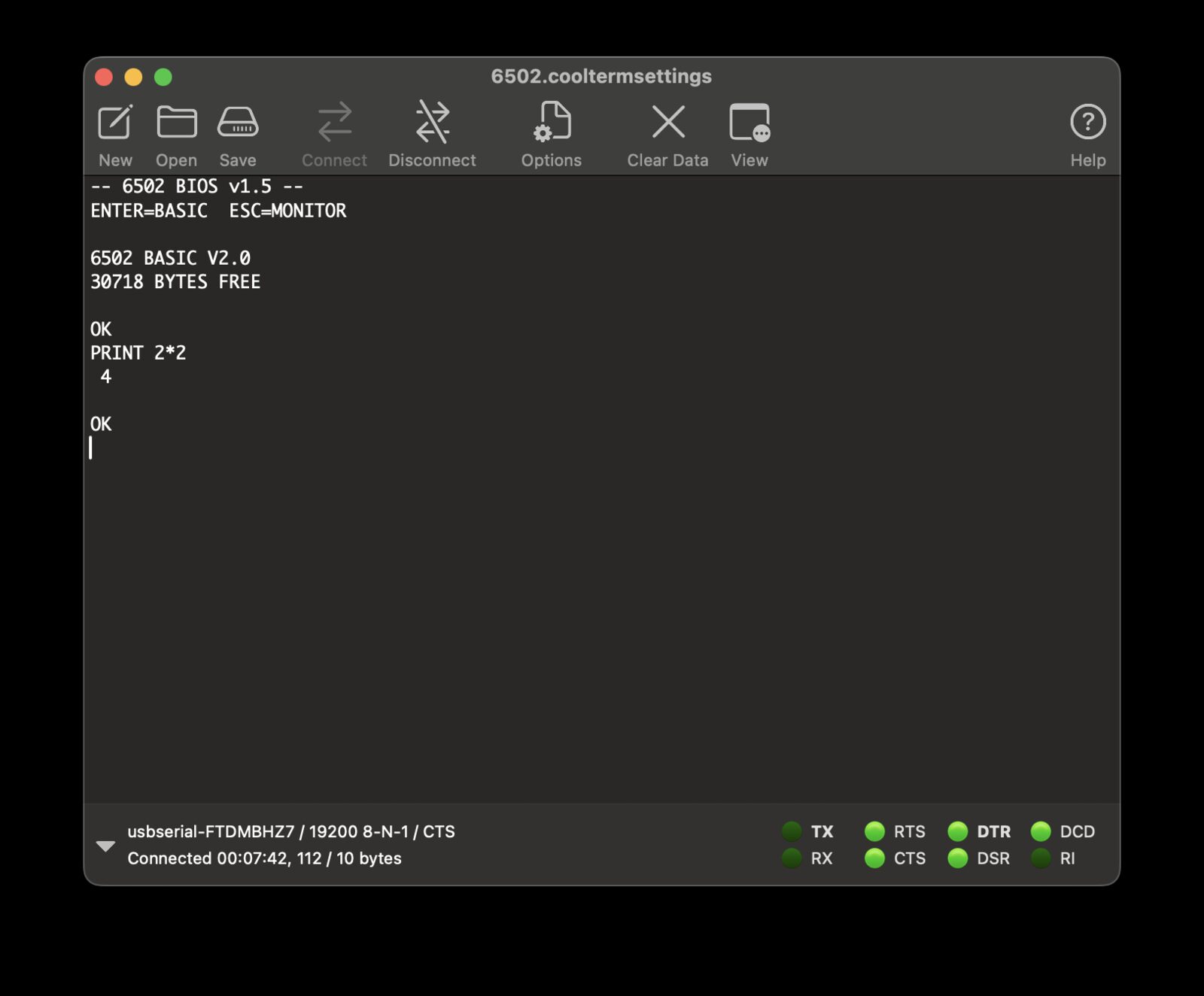
A USB-to-serial adapter into the DB9 socket, and a terminal program on the other end set to:
19200 baud, 8 data bits, no parity, 1 stop bit — usually written 8-N-1.
Any terminal program will do: screen or minicom on Linux and macOS, PuTTY or CoolTerm on Windows. On a Mac, screen /dev/tty.usbserial-XXXX 19200 and you're in.
What happens next depends on whether the ACE has a screen. With no video card fitted, press reset and the header appears in your terminal, and the whole session happens there. With one, the console stays on the screen: what you type in the terminal still reaches BASIC, but the answers appear on the ACE's own display. Type PRINT 2+2 in the terminal and watch it land.
Esc versus your terminal
Some terminal programs swallow Esc for their own menus. If pressing it doesn't stop a running program, use Ctrl+C instead — it does the same job. See The keyboard.
Note that this is a second way in, not a replacement: the ACE's own keyboard stays live the whole time, and both feed the same BASIC.
Moving files over the cable
LOAD and SAVE with no filename don't touch the memory card at all. They transfer over the serial line instead, using XModem — the file transfer protocol every terminal program has had since the 1980s.
To send a program to the ACE, type:
LOAD
XMODEM RX READY
The machine is now waiting. In your terminal program, start an XModem send and pick the file. It arrives, and you're back at OK with the program loaded.
To pull one off the ACE, type SAVE with no filename instead. You'll get XMODEM TX READY, and you start an XModem receive in your terminal.
Either way you've got about a minute to get the transfer started before the ACE gives up and hands you the prompt back. If that happens, nothing is harmed — just type the command again.
Writing listings on your computer
Once you've got a terminal, the comfortable way to work on anything longer than a screenful is to write it in a text editor on your computer and paste it in. Type it as plain text with the line numbers in place, select all, paste. BASIC reads it exactly as if you'd typed it — and it's a good deal faster than typing forty lines by hand.
Turn on hardware flow control
A paste arrives faster than BASIC can store the lines, so the ACE tells the other end to wait: when the characters it hasn't read yet fill most of its buffer, it raises the serial port's RTS line, and lowers it again once it has caught up. A terminal set to RTS/CTS (hardware) flow control pauses on that signal, and a long paste arrives whole. With flow control off, a long paste quietly loses lines. The emulator can't be that terminal: a serial port it opens is wired to the emulated ACE, so a real board on the other end is talking to a second ACE, not to you.
The emulator has a paste button that does the same job without any cable at all.
For anything bigger, bastok converts a text listing into the compact form LOAD expects, so it transfers in a moment rather than a line at a time.